
What Is a Good Internet Speed for Working From Home and Running a Small Business?
- Ethan Cole
- 6 days ago
- 6 min read
If you have ever typed "Test My Internet" into Google right before a video call or a big file upload, you already know the feeling. Everything looks fine until it is not. Pages load slowly, the meeting freezes, a client download fails, or a cloud backup crawls all afternoon.
This guide explains what good internet speed actually means for real work, not just streaming. You will learn what numbers matter, what speeds are practical for different workflows, and how to test correctly so you can trust the results.
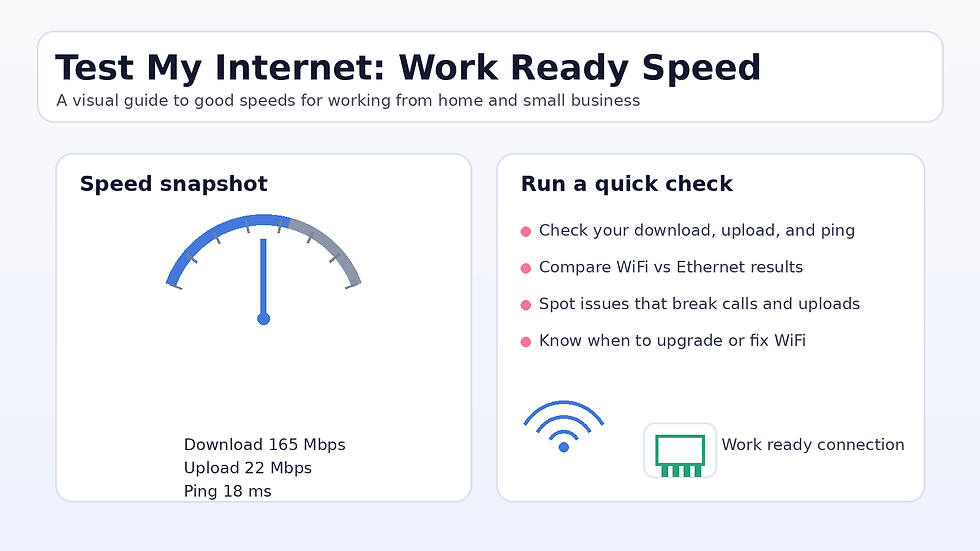
Run a quick check here: Test My Internet Speed
The short answer: what speed is good for most people
For most work from home setups and small business tasks, a reliable connection matters more than a huge download number.
A solid target for many households is 100 Mbps download and 20 Mbps upload. That matches the FCC’s updated benchmark for fixed broadband.
If you do a lot of video calls, send large files, or run cloud backups, prioritize upload speed and consistency.
A simple rule you can remember
· If you mostly browse, email, and do light admin work, you can get by on less.
· If you video call daily and share screens, upload and latency matter.
· If you upload big files, run cloud tools, or have multiple people working at once, you want extra headroom.
Before we talk numbers, know what speed really means
When people say my internet is slow, they could mean different things. Here is what the main terms mean in plain English.

Download speed
How fast your device pulls data from the internet. This affects loading pages, downloading PDFs, installing updates, and streaming.
Upload speed
How fast your device sends data out. This affects video call quality, sending email attachments, uploading photos and videos, cloud backups, and uploading templates, PDFs, and spreadsheets to clients or platforms.
Ping and latency
How quickly your device gets a response back from a server. Low latency helps meetings feel smooth and makes web apps feel snappy.
Jitter and packet loss
These are common reasons calls feel glitchy even when download speed looks fine. Jitter means the timing of data packets is uneven. Packet loss means some packets never arrive. Both can cause choppy audio, robotic voices, and frozen video.
Recommended speeds by real world use case
These targets are practical baselines that hold up well in everyday business and work from home scenarios.

1) Solo work from home, light video calls
Good target:
· 25 to 50 Mbps download
· 5 to 10 Mbps upload
If you are on one laptop and one phone with basic meetings and basic downloads, this usually holds up.
2) Daily video calls and screen sharing
Good target:
· 50 to 100 Mbps download
· 10 to 20 Mbps upload
Video apps can work on lower numbers, but real life is messier because your connection shares bandwidth with everything else in the house. That is why a connection that should be enough still fails when someone else starts a download or your WiFi gets noisy.
References for video call bandwidth: Zoom bandwidth requirements and Google Meet network requirements
3) Small business owner sending files and using cloud tools
Good target:
· 100 Mbps download
· 20 Mbps upload
This is where life gets easier. Uploading PDF libraries, transferring spreadsheets, exporting reports, syncing cloud drives, and using browser tools all feel more stable.
4) Two people working from home at the same time
Good target:
· 200 Mbps download
· 20 to 40 Mbps upload
If two people are on calls, sharing screens, and uploading files, the connection needs breathing room. Even when raw bandwidth is enough, congestion and WiFi issues can still create lag.
5) Teams, agencies, and heavy upload workflows
Good target:
· 300 Mbps to 1 Gbps download
· 50 Mbps or higher upload
If you regularly upload large creative files, host frequent group calls, or run multiple cloud systems, higher upload becomes the difference between smooth and painful.
How to test my internet the right way so results are real
A speed test is only useful if it reflects the connection you actually use. Use this quick checklist.
Run your test here: Test My Internet Speed

1. Run the test on the device you work on. A desktop on Ethernet and a laptop on WiFi can show very different results.
2. Test twice: once on WiFi, once on Ethernet. If Ethernet is fast but WiFi is not, your WiFi is the bottleneck.
3. Test at two times of day. Morning and evening results can differ if your neighborhood is congested.
4. Close big background uploads. Cloud sync tools can quietly eat your upload speed.
Why your download speed looks great but work still feels slow
This is the most common situation. Here are the usual culprits.

Problem 1: upload is too low
You can download fast and still have terrible calls and slow file sending if upload is limited. Upload is the outgoing lane your video and files depend on.
Problem 2: latency is high
High latency makes web apps feel sluggish even with good download speed. If meetings feel delayed or web tools feel sticky, latency may be the issue.
Problem 3: WiFi interference
Apartments and dense neighborhoods can have crowded WiFi channels. Your plan can be fine but the airwaves are noisy.
Problem 4: bufferbloat
This is when your network gets stuck under load. If call quality drops when someone starts a download, this is a strong clue.
Quick fixes that make a noticeable difference

Use Ethernet for important calls
Plug in for client calls when possible. It removes a huge variable.
Move closer to your router
If speed jumps when you move closer, your WiFi setup is the bottleneck, not the ISP.
Reboot your modem and router
Not every day, but a clean restart can help if things feel strange.
Split work traffic from everything else
Put work devices on a 5 GHz network when possible and avoid big backups during call heavy hours.
Consider a better router for a home office
A better router often improves stability more than upgrading the plan.
A practical speed table for common tasks
Here is a simple way to think about what matters for different work tasks.
Basic business tasks
Email, accounting tools, browsing, and admin work usually perform well on modest speeds as long as the connection is stable.
Video calls
Zoom and Google Meet publish bandwidth guidance that is helpful as a reference point, but real conditions often require extra headroom for stability.
References: Zoom bandwidth requirements and Google Meet network requirements
File uploads and cloud sync
If you upload documents often, focus on upload speed and consistency. Upload bottlenecks show up fast in real work.
Downloads and client deliveries
If you host downloadable resources, your own upload speed matters for pushing updates, but your website hosting and delivery network also affect how fast users receive files.
Related: Templates and Downloads hub
When it is time to upgrade your internet plan

Upgrading can help, but only if you upgrade the right thing.
Consider an upgrade if:
· Your upload speed is consistently low for your work.
· Your household has multiple people working or streaming at the same time.
· You do frequent HD calls and screen sharing.
· You upload big files weekly.
If your tests show strong speeds but real world performance is still bad, upgrading may not fix it. In that case, focus on WiFi placement, router quality, or Ethernet first.
FAQ: quick answers people search for
How do I test my internet speed accurately
Use a reliable speed test, run it on your work device, test both WiFi and Ethernet, and repeat at different times of day for a true picture.
What is a good internet speed for working from home
A good target for many people is 50 to 100 Mbps download and 10 to 20 Mbps upload, depending on calls and file uploads. A common benchmark for fixed service is 100 Mbps download and 20 Mbps upload.
Why does my speed test look good but Zoom still lags
Lag often comes from low upload, high latency, WiFi interference, jitter, or packet loss. Video apps can work at low Mbps on paper, but real conditions need extra headroom for stability.
Should I test my internet on my phone or my computer
Test on the device you actually use for work. If your laptop is slow but your phone is fast, the issue may be WiFi placement or the laptop’s network adapter.
Final takeaway
If you want one clear goal, aim for stability first. A connection that holds steady through calls, uploads, and daily work beats a flashy speed test number that collapses under load.
Run a quick test now: Test My Internet Speed
Comments